---
title: "Status Diagram"
slug: "status-diagram-widget"
updated: 2026-10-13T13:49:37Z
published: 2026-10-13T13:49:37Z
canonical: "learn.servitly.com/status-diagram-widget"
---
> ## Documentation Index
> Fetch the complete documentation index at: https://learn.servitly.com/llms.txt
> Use this file to discover all available pages before exploring further.
# Status Diagram
Displays the values of a status metric with the amount of time spent in each status for a given period.
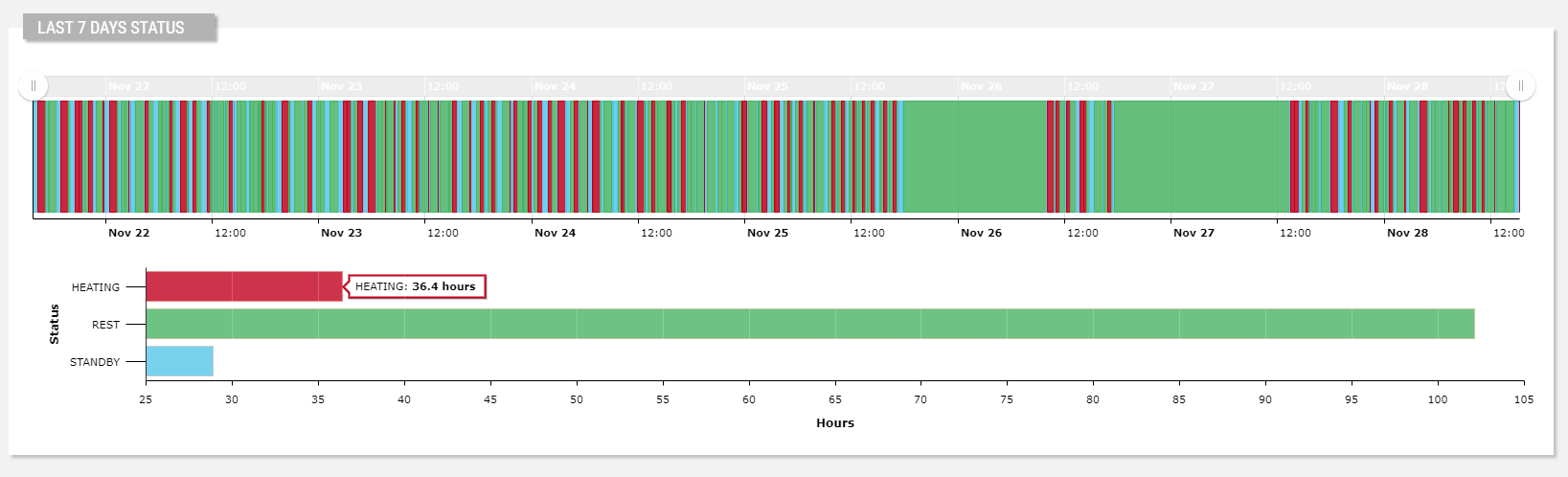
The widget is subdivided into two charts:
- The top one shows the status of the thing instant by instant within the selected period (default last 7 days).
- The bottom one shows the total time the thing spent in each status, along with the relative percentage.
The bottom chart can be a *Bar* chart (default) or, optionally, a *Pie* chart, as below.
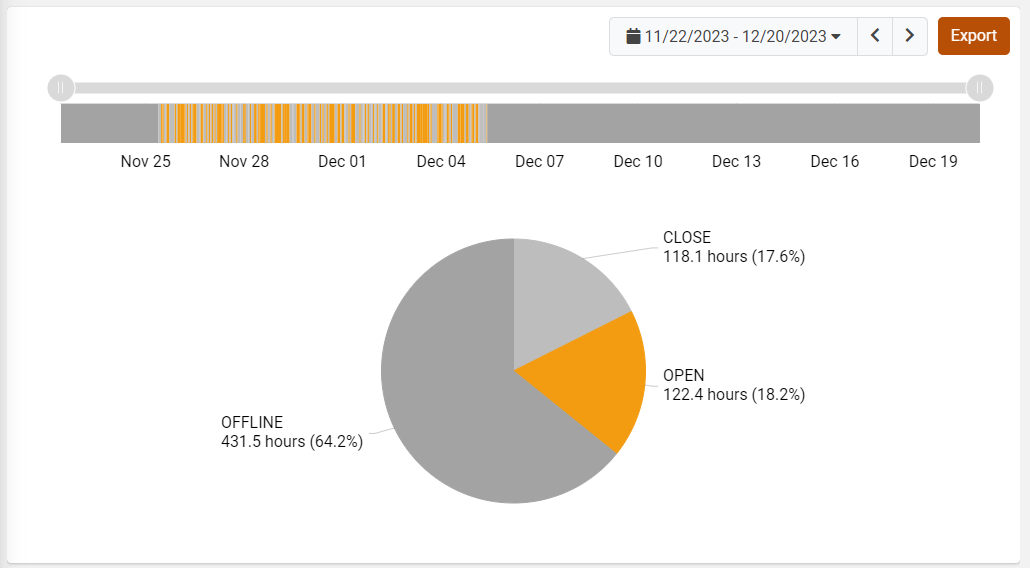
Each state is displayed using a specific color; by default, colors are already configured for the most commonly used states. In addition, through the [Color Manager](/v1/docs/color-manager), you can register more colors for your states.
Optionally, the bottom chart can be turned off by using the *Show Aggregation Chart* option.
## Events
Along the status transitions, you can also show the events and work sessions that occurred in the same time period.
In the Events section of the property panel, you can define a query on the events to be loaded (e.g., Event Severity = FAILURE).
.png?sv=2026-02-06&spr=https&st=2026-11-02T10%3A38%3A23Z&se=2026-11-02T11%3A38%3A23Z&sr=c&sp=r&sig=gMthDuuVUzt1ZA0Sprlg4uyhxWTQrhwvzobNZfLb7%2Fo%3D)
For each found event, a marker is displayed under the x-axis, and by clicking on the marker, a tooltip displays the event details, and the chart area corresponding to the event duration is highlighted according to the event severity.
## Template Syntax
Below you can find some examples of how to use the component within a template.
```xml
```
## Component Reference
Here is a comprehensive list of all the elements and properties that can be used to configure the component.
#### Status Diagram `<status-diagram-widget>`
| *Aggregation Chart Type* | The type of the chart displaying the total time spent by status (Bar or Pie). **Name**: config.aggregationChartType **Type**: ENUM \| Optional **Values**: *BAR*, *PIE* **Default Value**: *BAR* `[config]="{aggregationChartType: 'BAR'}"` |
| --- | --- |
| *Show Aggregation Chart* | Flag indicating whether to show the aggregation chart. **Name**: config.showAggregatedChart **Type**: BOOLEAN \| Optional **Default Value**: *true* `[config]="{showAggregatedChart: false}"` |
| *Title* | The title displayed on the top part of the widget box. **Name**: title **Type**: STRING \| Optional `[title]="'Status Diagram'"` |
| **Controls** |
| *Export Enabled* | The boolean flag indicating whether the data export is enabled. **Name**: config.exportEnabled **Type**: BOOLEAN \| Optional **Default Value**: *true* `[config]="{exportEnabled: false}"` |
| *Period Filter Enabled* | The boolean flag indicating whether the embedded period filter is available. **Name**: config.filterEnabled **Type**: BOOLEAN \| Optional **Default Value**: *true* `[config]="{filterEnabled: false}"` |
| *Preselected Statuses* | The comma-separated list of states to be preselected. **Name**: config.preselectedStatuses **Type**: STRING \| Optional `[config]="{preselectedStatuses: 'abc'}"` |
| *Status Selection Enabled* | The flag indicating whether to enable the selection field to filter states. **Name**: config.statusSelectionEnabled **Type**: BOOLEAN \| Optional **Default Value**: *false* `[config]="{statusSelectionEnabled: true}"` |
| **Data** |
| *Default Loading Period* | The default filtering period applied when entering the page. **Name**: config.defaultPeriod **Type**: PERIODS \| Optional **Default Value**: *LAST_7_DAYS* `[config]="{defaultPeriod: 'LAST_30_DAYS'}"` |
| *~~End Date Variable~~* | The 's End Variable filtering data by end date. **Name**: endDateFieldRef **Type**: STRING \| Optional > [!CAUTION] > DEPRECATED > > Use the Period Variable property. `endDateFieldRef="toDate"` |
| *Period Variable* | The id of the page's variable providing the date range filtering period, for instance the id of a . **Name**: inputs.period **Type**: STRING \| Optional `[inputs]="{period: 'period'}"` |
| *~~Start Date Variable~~* | The 's Start Variable filtering data by start date. **Name**: startDateFieldRef **Type**: STRING \| Optional > [!CAUTION] > DEPRECATED > > Use the Period Variable property instead. `startDateFieldRef="fromDate"` |
| **Events** |
| *Events Query* | The query used to load events. **Name**: config.eventQuery **Type**: QUERY \| Optional **Predicates**: *beginsWith*, *eq*, *neq*, *gt*, *gte*, *isEmpty*, *isNotEmpty*, *lt*, *lte*, *like*, *notLike* `[config]="{eventQuery: [{property:'prop1', predicate: 'eq', value: 'foo'}, {property:'prop2', predicate: 'in', value: ['bar', 'baz']}]}"` |
| *Show events* | Flag indicating whether to enable events on charts. **Name**: config.showEventsOnChart **Type**: BOOLEAN \| Optional **Default Value**: *false* `[config]="{showEventsOnChart: true}"` |
| *Show Work Sessions* | Flag indicating whether to enable work sessions on charts. **Name**: config.showWorkSessionsOnChart **Type**: BOOLEAN \| Optional **Default Value**: *false* `[config]="{showWorkSessionsOnChart: true}"` |
| *Work Sessions Query* | The query used to load work sessions. **Name**: config.workSessionQuery **Type**: QUERY \| Optional **Predicates**: *beginsWith*, *eq*, *neq*, *gt*, *gte*, *isEmpty*, *isNotEmpty*, *lt*, *lte*, *like*, *notLike* `[config]="{workSessionQuery: [{property:'prop1', predicate: 'eq', value: 'foo'}, {property:'prop2', predicate: 'in', value: ['bar', 'baz']}]}"` |
| **Advanced** |
| *Include Connection Status* | Indicates whether the connection status must be included in the status list. **Name**: config.loadConnectionStatus **Type**: BOOLEAN \| Optional **Default Value**: *true* `[config]="{loadConnectionStatus: false}"` |
| *Statuses* | The comma separated list of all known statuses, if not specified only the retrieved metric values will be displayed (e.g. READY,WORKING). **Name**: config.statuses **Type**: STRING \| Optional `[config]="{statuses: 'abc'}"` |
| **Rendering** |
| *Availability* | Configure availability based on active features on Digital Plan on Add-ons **Name**: hasFeature **Type**: FEATURE (multiple) \| Optional `[hasFeature]="['feature_a', 'feature_b']"` |
| *CSS Class* | The name(s) of the CSS class used to customize the widget layout. **Name**: class **Type**: STRING \| Optional `class="abc"` |
| *Visibility Condition* | The expression that allows you to reduce the visibility of the element. **Name**: *ngIf **Type**: STRING \| Optional `*ngIf="getUser().organizationId != null"` |
| **Sub Elements** |
| [*Metric*](/docs/status-diagram-widget/#metric) | The metric providing the statuses to display into the widget. |
#### Metric `<metric>`
| *Filter* | The name of the filter used to transform and display values. **Name**: filter **Type**: FILTER \| Optional `filter="fooBarFilter"` |
| --- | --- |
| *Label* | The metric alternative label. **Name**: label **Type**: STRING \| Optional `label="Temperature"` |
| *Name* | The metric whose value(s) must be loaded by the widget. **Name**: name **Type**: METRIC \| Required `name="Temperature"` |
## Full Syntax Example
```xml
```